

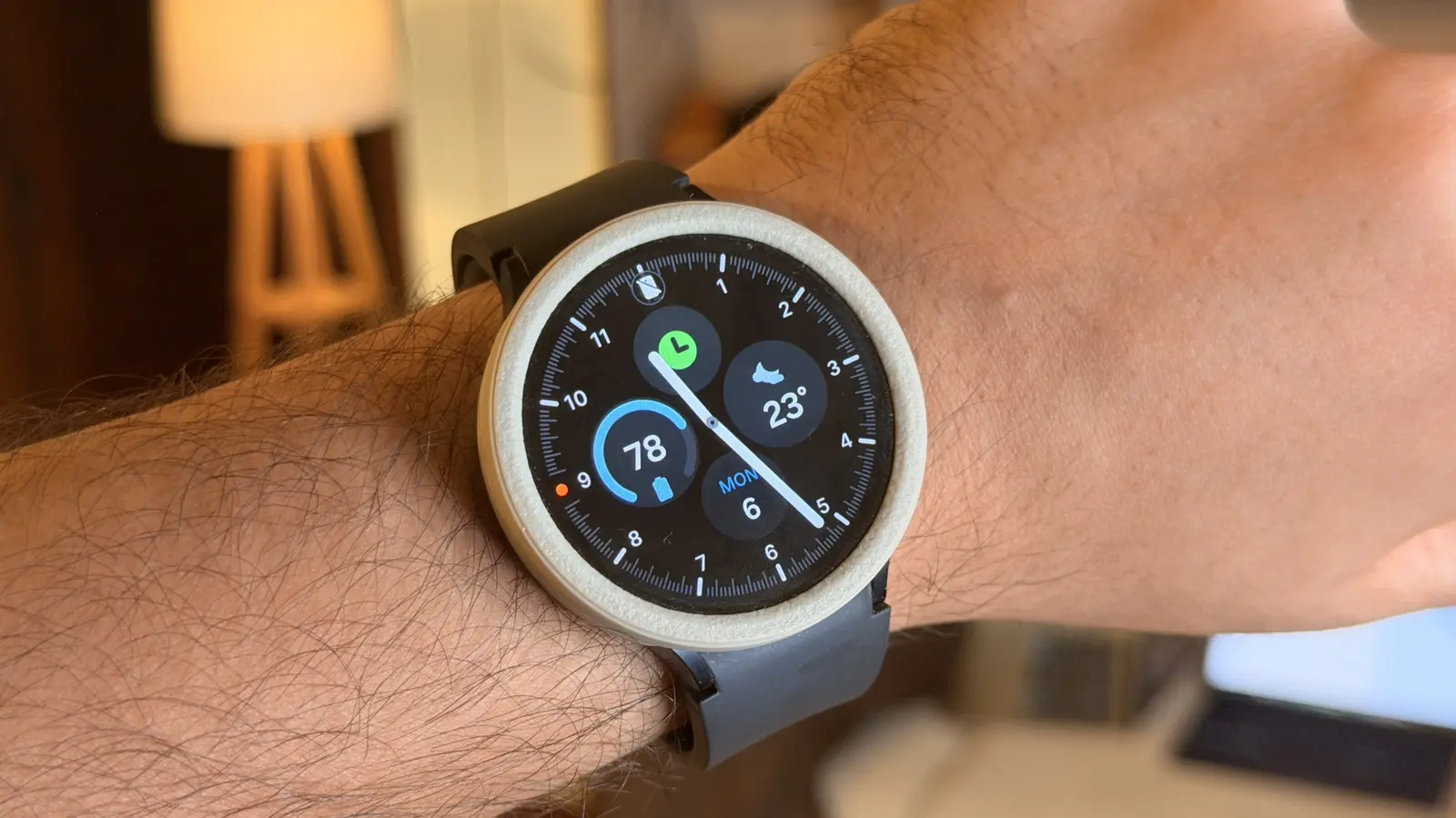
When choosing a smartwatch for Android, the Samsung Galaxy Watch series remains a top contender alongside the Google Pixel Watch. Models like the Galaxy Watch 8, Watch Classic, and Watch Ultra offer robust features, but one persistent drawback is battery life. Many users find their Galaxy Watch barely lasts a full day, often requiring a charge before bedtime. This makes sleep tracking or overnight alarms inconvenient. Fortunately, several effective adjustments can significantly extend your watch's battery life. Whether you need to survive a long day out or want to wear the watch overnight, these five tips have been proven effective from the Galaxy Watch 4 to the latest generation.
Disable Always-on Display and Raise to Wake
The always-on display (AOD) is a popular feature that lets you see the time at a glance, mimicking a traditional watch. However, it is one of the biggest battery drains on any smartwatch. The screen remains illuminated at a low brightness, constantly consuming power. Similarly, the "raise to wake" feature uses the accelerometer to detect wrist movements, turning on the display every time you lift your arm. Both features are convenient but come at a significant battery cost.
To save battery, navigate to Settings > Display > Always On Display and disable it. While in the same menu, turn off the "Raise wrist to wake" toggle. Without these, you will need to tap the screen to wake the watch—a small tradeoff for hours of extra battery life. Consider enabling them only when you need quick glances, such as during meetings or when your hands are busy. On days when you prioritize longevity, keeping both off will make a noticeable difference. Many users report that disabling AOD alone can extend battery life by 15-30% depending on usage patterns.
Turn off 'Hey Google' Detection
With Gemini integration on Wear OS, voice assistants have become more powerful on the Galaxy Watch. Saying "Hey Google" to set reminders, check weather, or send messages is convenient. However, this convenience comes at a cost: the watch continuously listens for the hotword, keeping the microphone and always-on voice processing active. This drains the battery even when you are not actively using the assistant.
To disable hotword detection, open the Google Gemini settings on your connected smartphone (not the watch itself). Find the option for "Hey Google" detection on the smartwatch and turn it off. Once disabled, you can still invoke Gemini by assigning one of the hardware buttons to launch the assistant on a long press or double press. Alternatively, you can manually open the Gemini app from the app drawer after swiping up from the watch face. This method eliminates the background listening while retaining voice assistant functionality when needed. For users who rarely use voice commands, this single change can add hours of standby time.
Reduce Heart Rate Monitoring Frequency
Health tracking is a primary reason people buy smartwatches. Continuous heart rate monitoring provides valuable insights into fitness, stress, and sleep. However, the optical heart rate sensor requires the watch to pulse green LEDs constantly, which consumes significant energy. Samsung's default setting often measures continuously, but you can adjust it to sample every 10 minutes while still, or even disable automatic measurement altogether.
Open the Samsung Health app on your watch or phone, go to Settings > Heart rate, and choose "Manual only" or "Every 10 minutes while still." Manual only means the watch will not record heart rate unless you deliberately start a measurement. This saves maximum battery but loses continuous data, which may affect stress tracking and resting heart rate trends. If you still want periodic measurements without sacrificing too much battery, the 10-minute interval is a good compromise. For workout tracking, you can always start a manual exercise session where the sensor runs continuously. This granular control lets you balance battery life with health data collection based on your daily needs.
Turn off LTE Connectivity
Galaxy Watches come in two variants: Bluetooth-only and Bluetooth+LTE. While LTE allows you to use the watch independently of your phone—making calls, streaming music, or receiving notifications—it requires the watch to constantly search for cellular signals when away from the phone. This radio activity is one of the most power-hungry operations on any wearable. Even when paired via Bluetooth, the LTE radio might be scanning for networks if enabled.
To save battery, navigate to Settings > Connectivity > Mobile networks on your watch. Change the setting to "Always off" if you rarely use cellular features. If you still want LTE available but want to minimize drain, select "Auto" mode, which only activates cellular when the watch is out of Bluetooth range. However, even Auto mode can cause periodic scanning. The best approach is to keep LTE off unless you are heading out without your phone. Many users find that disabling LTE when not needed can extend battery life by 20-30% on days when they stay close to their smartphone. For those who primarily use the watch as a phone companion, turning off LTE is a no-brainer.
Enable Power Saving Mode
When you need maximum battery endurance, power saving mode is the ultimate solution. It aggregates all the previous tips into one toggle. Once activated, the watch automatically reduces display brightness, shortens screen timeout, limits CPU performance, restricts background network usage, and disables location tracking and data syncing. You also get the option to limit health tracking features. The watch's screen may switch to a grayscale or simpler interface to save energy.
To enable power saving, swipe down from the watch face to open quick settings, then tap the battery icon with a leaf. A screen will show you how much additional time you will gain with the mode enabled. This mode is best reserved for emergencies—when your battery is critically low and you are hours away from a charger. In this mode, the watch becomes a basic timepiece with core functionality, but it can keep running for days on minimal charge. For heavy users who often push through long days without charging, setting up a routine to automatically enable power saving at a certain battery percentage can be a lifesaver. Remember that while power saving mode significantly extends battery life, it also disables many of the smart features that make the Galaxy Watch appealing. Use it judiciously.
Implementing these five tips will help you get the most out of your Samsung Galaxy Watch's battery. Each adjustment offers a trade-off between convenience and endurance, so experiment to find the combination that suits your lifestyle. Whether you are a fitness enthusiast tracking every heartbeat or a traveler who needs the watch to last multiple days, these strategies will keep your smartwatch running longer without compromising your essential needs.
Source: SlashGear News